


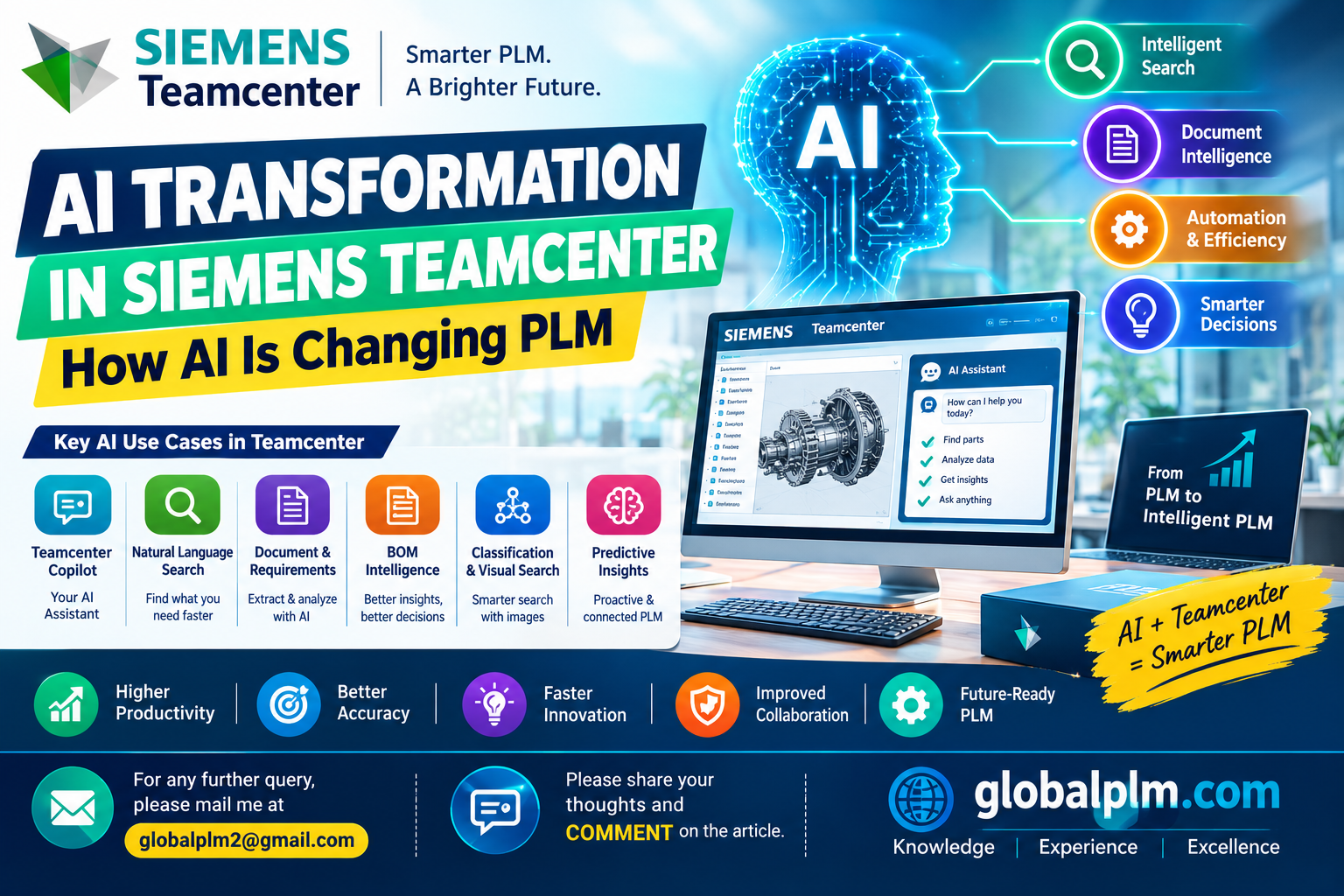
AI Transformation in Siemens Teamcenter: How AI Is Changing PLM
A System Administrator’s Field Guide to Teamcenter Copilot, RAG, and Visual Search
GlobalPLM.com | Teamcenter Administration Series
|
Who this article is for: Teamcenter administrators, PLM infrastructure engineers, and DevOps/IT staff who are being asked to plan, install, secure, or troubleshoot AI-enabled Teamcenter environments — not a marketing overview of what AI “could” do. |
1. Why This Is an Admin Problem, Not Just an Engineering Feature
When Siemens talks about “AI in Teamcenter,” most of the conversation happens at the engineering and business level: faster search, better BOM answers, smarter document handling. What rarely gets discussed is that every one of those capabilities is, underneath, a new set of services, a new network dependency, a new identity to manage, and a new place where data can leak or a query can fail. That work lands on the Teamcenter administrator.
This article looks at Teamcenter AI — primarily Teamcenter Copilot, Retrieval-Augmented Generation (RAG) search, and Azure AI Vision-based visual search — from the perspective of someone who has to install it, secure it, keep it fast, and explain to an audit team exactly what data left the corporate network and where it went.
2. The Architectural Shift: From Data Repository to Reasoning Layer
Classic Teamcenter administration is built around a predictable request path: a client (rich client or Active Workspace) sends a request through the web tier to the enterprise tier, which talks to the database and file management system. Every AI capability described in this article adds a parallel path alongside that one — it does not replace it.
Instead of “client → web tier → enterprise tier → database,” you now also have “client → Copilot orchestrator → retrieval index → external or on-prem language model → response.” The two paths intersect at the access-control layer, which is the single most important integration point to get right (see Section 8).
2.1 What Actually Changed vs. What Just Got a New Name
• Still the same: TC Server Manager, FMS, BMIDE-modeled data model, Access Manager rules, dispatcher, and TCCS all continue to function exactly as before.
• Genuinely new: an orchestration/copilot service, an embedding/indexing pipeline, a vector or semantic index, and (for most deployments) an outbound dependency on a cloud-hosted LLM endpoint.
• Easy to get wrong: assuming that because the UI still looks like Active Workspace, the security model is unchanged. It isn’t — a poorly configured retrieval filter can surface content a role should never see, even if the base Teamcenter ACLs are correct.
3. Where the AI Components Actually Sit in the Stack
Before touching configuration, it helps to map each AI capability to a concrete layer in the architecture you already administer. This is the version of the diagram I wish I had the first time I was asked to “just turn on Copilot.”
|
Layer |
Component |
Function |
Typical Owner |
|
Presentation |
Active Workspace Copilot panel / search bar |
Captures natural-language queries and image uploads |
PLM UI/config admin |
|
Orchestration |
Copilot orchestrator service |
Routes intent, manages session context, calls retrieval + LLM |
Middle-tier/PLM admin |
|
Retrieval |
TC Query Service + vector/embedding index |
Finds relevant TC objects, documents, BOM data |
PLM admin + DBA |
|
Generation |
LLM endpoint (e.g., Azure OpenAI Service) |
Produces the natural-language answer from retrieved context |
IT/cloud integration team |
|
Vision |
Azure AI Vision (image feature extraction) |
Matches uploaded photos to CAD/part image data |
PLM admin + cloud team |
|
Governance |
Access Manager + audit logging |
Filters retrieval results by role/ACL, logs prompts/responses |
Security/compliance + PLM admin |
3.1 Capability Map
The diagram below groups the customer-facing capabilities around the Copilot core and lists the specific sub-functions an administrator will be asked to enable, monitor, or restrict for each one.
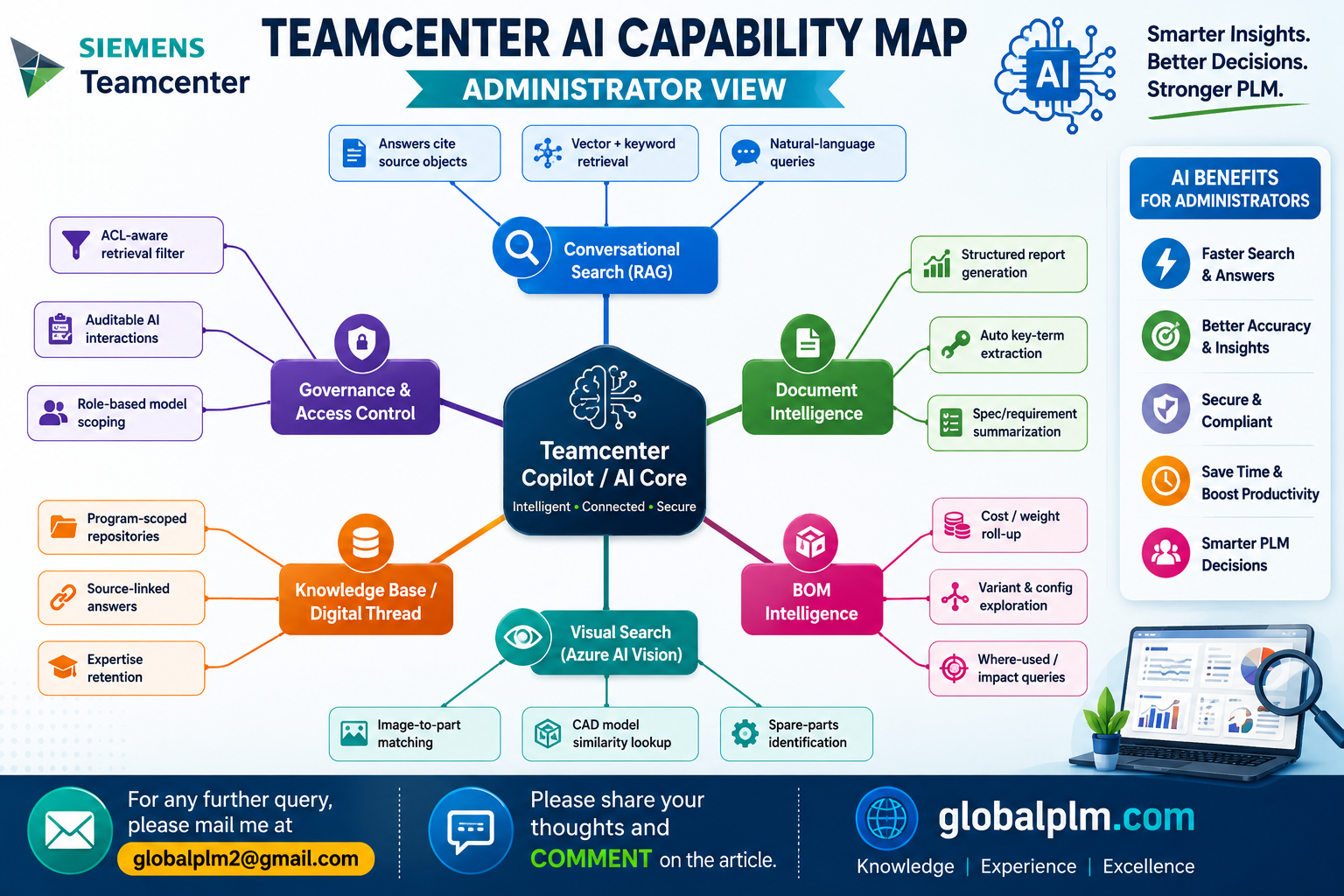
Figure 1 — Teamcenter AI capability map, grouped by function (administrator view).
4. Core Capabilities and What They Mean Operationally
4.1 Conversational Search (RAG-Based Copilot Q&A)
This is the capability most users mean when they say “Teamcenter Copilot.” A user types a question in plain language; the system retrieves relevant Teamcenter content, hands it to an LLM along with the question, and the LLM composes an answer that references the retrieved objects.
Operationally, this is a search-relevance problem before it’s an AI problem. If your item revisions are poorly named, your classification is inconsistent, or your documents lack meaningful metadata, the retrieval step returns weak context and the generated answer will be confidently wrong.
• Admin checkpoint: review indexing scope — which item types, revisions, and document classes are included — before user acceptance testing, not after.
4.2 Document Intelligence (Summarization and Extraction)
Applied to specifications, requirements documents, test reports, and manufacturing instructions, this feature extracts key terms and produces summaries or structured tables from unstructured text.
• Technical example: a 40-page supplier test report is submitted as a dataset attachment; the summarization pipeline extracts pass/fail results into a table without an engineer opening the PDF. The underlying document object and revision are unchanged — the summary is generated on demand, not stored as a new managed object, unless your configuration explicitly persists it.
4.3 BOM Intelligence (Natural-Language BOM Queries)
This maps natural-language questions to structured BOM operations — where-used, impact analysis, variant comparison — that would otherwise require a saved query, a report, or a manual expansion of the product structure.
Example queries an engineer might type, and the underlying Teamcenter operation each one triggers:
|
Natural-language query |
Underlying Teamcenter operation |
|
“Where else is this fastener used?” |
Where-used query across BOM/product structure |
|
“What changes if I swap this connector?” |
Impact analysis against affected assemblies/ECs |
|
“Compare the EU and NA variants of this assembly.” |
Variant/configuration comparison across effectivity |
• Admin checkpoint: natural-language BOM queries still run through the same structure/effectivity rules as a manual query. If your effectivity or variant configuration is misconfigured, the AI answer inherits that error — it does not correct it.
4.4 Visual Search (Azure AI Vision)
Visual search lets a user upload a photograph and receive a ranked list of visually similar parts, CAD models, or product images stored in Teamcenter. In current Siemens deployments this is powered by Microsoft Azure AI Vision for the image-recognition step, with results resolved back to Teamcenter part records.
A practical field scenario: a service technician finds an unlabeled hydraulic fitting during a repair. Rather than paging through a parts catalog, they photograph it and upload it through Active Workspace; the system returns the closest-matching part numbers with links to CAD and product structure.
• Admin checkpoint: visual search quality depends entirely on the completeness of your image/CAD render dataset. Parts without a representative image or rendered thumbnail will never surface as a match, regardless of how good the AI model is.
4.5 Knowledge Base Creation
This capability indexes a defined document set — program-specific specifications, lessons learned, standard work — into a queryable knowledge domain, with every answer linking back to its source document. For administrators, this is functionally a scoped, access-controlled retrieval index layered on top of an existing folder or classification structure.
5. Request Flow: What Happens Between Query and Answer
The diagram below traces a single Copilot request end to end, including the two points every admin should care about most: the ACL filter (Section 8) and the audit log branch, which should capture every prompt and response for compliance review.
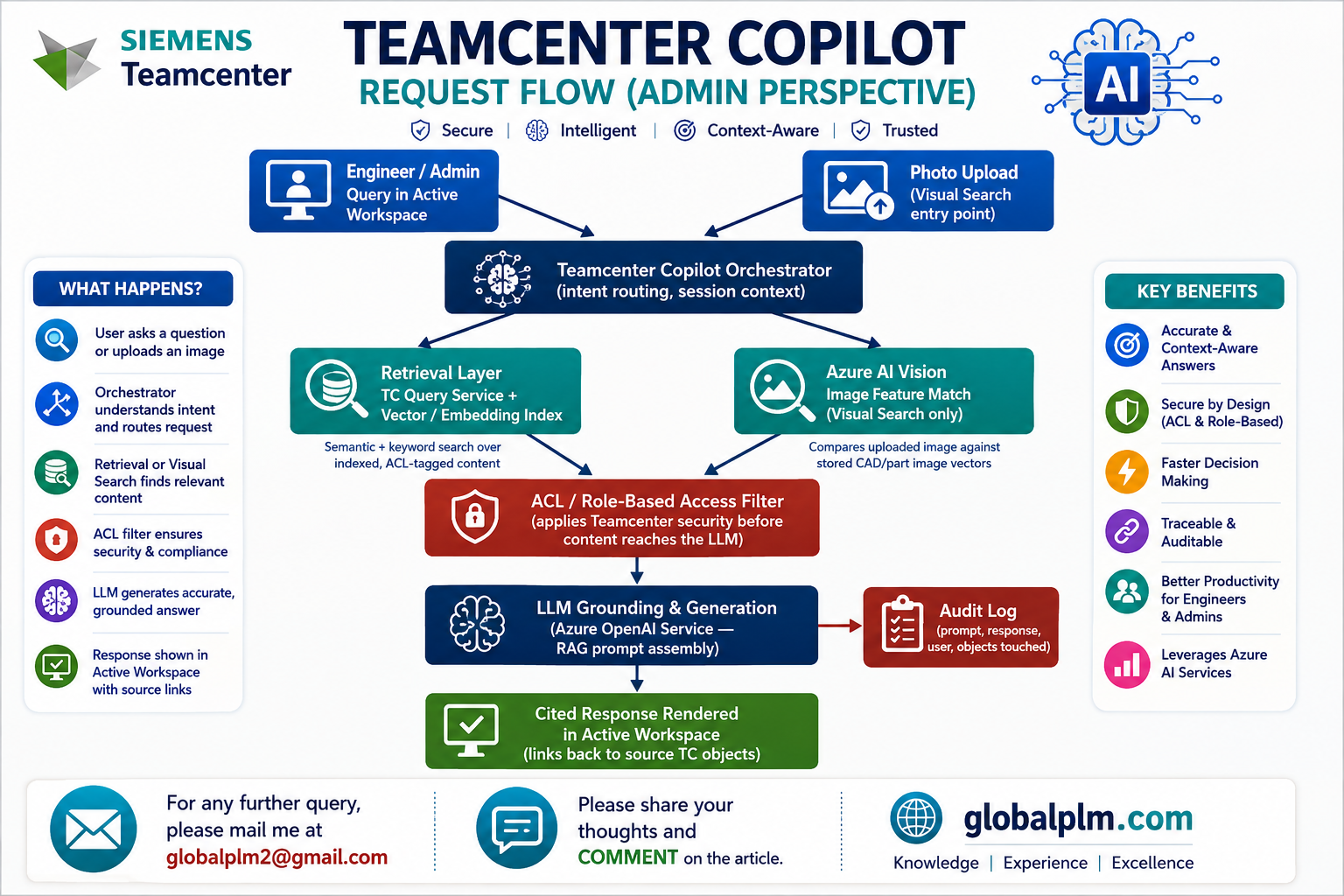
Figure 2 — Teamcenter Copilot request flow, including the access-control checkpoint and audit logging branch.
6. Infrastructure and Installation Considerations
Plan capacity and network access for the following components before scheduling a go-live date. None of these replace existing 4-tier services — they run alongside them.
|
Component |
Purpose |
Admin Notes |
|
Copilot orchestration service |
Routes user intent, manages session/context |
Usually a new middle-tier service or container; needs its own port, app pool, and health check |
|
Embedding / indexing pipeline |
Converts TC objects and documents into vector representations |
Initial full index run can take hours on large datasets; plan a maintenance window |
|
Vector / semantic index store |
Stores embeddings for similarity search |
Storage grows with document volume; monitor disk and query latency separately from the TC database |
|
LLM endpoint (cloud or on-prem) |
Generates natural-language responses |
Requires outbound HTTPS to the provider endpoint; firewall, proxy, and DNS rules must be updated |
|
Vision service endpoint |
Image feature extraction for visual search |
Same outbound network requirements as the LLM endpoint; separate API quota to monitor |
|
Identity / secrets management |
Authenticates Copilot services to cloud endpoints |
Use managed identity or a vault-stored key — avoid embedding credentials in service configuration files |
|
Reverse proxy / load balancer |
Exposes new service endpoints alongside existing FSC/web tier |
Update routing rules and certificates; confirm session affinity if the orchestrator is load-balanced |
7. Bringing Copilot Online: A Practical Rollout Sequence
This is the sequence I follow when introducing Copilot or RAG-based search into an existing Teamcenter environment. Adjust order for your organization’s change-control process, but do not skip the pilot step.
1. Validate the baseline environment. Confirm Teamcenter, Active Workspace, and TCCS versions meet the minimum supported combination for the AI services you’re deploying. Confirm all existing 4-tier services are healthy before adding a dependency on top of them.
2. Provision and license the AI service. Register the Copilot/AI service according to Siemens licensing requirements and confirm entitlement before installing anything.
3. Establish outbound connectivity. Open firewall rules, configure proxy exceptions, and validate DNS resolution for the chosen LLM and vision endpoints. Test connectivity from the actual application server, not just from your desktop.
4. Configure identity and secrets. Set up managed identity or vault-based credentials for service-to-cloud authentication. Rotate and document key ownership.
5. Define the indexing scope. Decide which item types, revisions, statuses, and document classes are eligible for retrieval. Narrower is safer for a first rollout.
6. Run the initial indexing/embedding batch. Schedule this during a low-usage window and monitor database and storage load; large datasets can take several hours on first run.
7. Map access control into the retrieval filter. Confirm that the retrieval layer enforces the same role and ACL rules as native Teamcenter search — test with at least two roles that have different visibility.
8. Enable the Copilot panel for a pilot group. Turn on the feature for a small, representative set of users and roles rather than the whole site.
9. Review pilot logs before wider rollout. Check audit logs for both answer quality and any access anomalies before expanding to additional user groups.
10. Establish a re-indexing cadence and monitoring alerts. Set a schedule for incremental re-indexing as data changes, and add monitoring for endpoint latency, quota usage, and indexing job failures.
8. Security and Governance: The Non-Negotiables
Every AI capability described above reads Teamcenter-managed data. That means every one of them is subject to the same IP protection and compliance obligations as the rest of your PLM environment — arguably more, because a generated answer can combine data from multiple objects in ways a single query result would not.
• Access control must be enforced at retrieval, not just at display. Filtering results after the LLM has already seen them is not equivalent to filtering before retrieval.
• Every prompt and response should be logged. Treat this the same as you would treat access to a sensitive document — auditable, attributable to a user, and retained per your compliance policy.
• Understand your data residency. If the LLM or vision endpoint is cloud-hosted, confirm which region processes the request and whether that satisfies your organization’s data residency and export-control requirements.
• RAG reduces — it does not eliminate — hallucination risk. Grounding answers in retrieved Teamcenter data improves accuracy and traceability compared to a general-purpose model, but users should still be able to see which source objects an answer was built from.
• Model deployment should be controlled, not ad hoc. Avoid a situation where different sites or teams point Copilot at different, unmanaged model endpoints.
9. Performance Tuning and Troubleshooting
Most of the issues that show up in the first weeks after go-live map to a small set of root causes:
|
Symptom |
Likely Cause |
Admin Action |
|
Copilot responses are slow |
LLM endpoint latency or request throttling |
Check outbound network path; review rate/quota limits on the model endpoint |
|
Answers are irrelevant or wrong |
Indexing scope too broad, stale embeddings, or poor chunking |
Re-index affected content; review document chunk size and metadata quality |
|
Copilot panel not visible to users |
Feature/role not enabled in Active Workspace preferences |
Verify role assignment and feature flag configuration |
|
Visual search returns no matches |
Part lacks an indexed image or rendered thumbnail |
Confirm image/CAD render pipeline has processed the part; re-run vision indexing job |
|
User sees content they shouldn’t |
ACL desync between Teamcenter and the retrieval index |
Audit the access-filter mapping; re-run permission synchronization immediately |
|
Indexing job fails partway |
Timeout on large document sets or unsupported file format |
Check job logs for the failing object; adjust batch size or exclude unsupported types |
10. Common Pitfalls Seen in the Field
• Rolling out Copilot to the entire site before validating access-control mapping with more than one test role.
• Assuming a clean pilot result on well-maintained data will hold up on production data with inconsistent metadata.
• Treating the vector index as a one-time load instead of planning an ongoing re-indexing cadence.
• No monitoring on outbound API quota, leading to a mid-day service degradation with no alert.
• Leaving audit logging as an afterthought instead of a go-live requirement.
• Expecting visual search to work on parts that were never photographed or rendered.
11. Quick-Reference Go-Live Checklist
1. Baseline TC / AWC / TCCS versions confirmed compatible
2. Outbound connectivity to LLM and vision endpoints tested from the application server
3. Managed identity or vault-based credentials configured (no hardcoded keys)
4. Indexing scope reviewed and approved by data owners
5. Access-control mapping tested with at least two distinct roles
6. Audit logging enabled and retention period confirmed
7. Pilot group identified and success criteria defined before wider rollout
8. Re-indexing schedule and endpoint monitoring/alerting in place
12. Where This Is Heading
The direction is toward AI participating more directly in engineering workflows — predictive change impact, automated manufacturing instruction drafts, service-plan generation — rather than only answering questions about existing data. From an administration standpoint, that means the retrieval and governance layers described in this article become more important over time, not less: as AI moves from answering questions to drafting content that feeds back into the PLM system, the access-control and audit requirements only get stricter.
Conclusion
Teamcenter’s AI capabilities are genuinely useful, but none of them are self-installing or self-governing. Conversational search, document intelligence, BOM intelligence, and visual search all depend on the same fundamentals administrators have always been responsible for: clean data, correctly scoped access control, monitored infrastructure, and a rollout plan that tests before it scales. Treat the AI layer as another tier to administer — with its own capacity planning, its own security review, and its own troubleshooting playbook — and the rest of the deployment becomes a familiar problem.
About the Author:-
Chandan Kumar
Teamcenter Infrastructure & PLM Professional
15+ years of practical experience working with Teamcenter administration, infrastructure, installation, configuration, Active Workspace, cloud infrastructure, databases, Linux, Ansible,Kubernetes, integrations,Teamcenter AI, performance troubleshooting and production support.
Linkedin:-https://www.linkedin.com/in/chandan-kumar-90111796/
GlobalPLM Mentorship Request Form
https://docs.google.com/forms/d/e/1FAIpQLSdtt5x33XOH-7_7Eo44QVofSxEJaX3r8279rSUF04iJG_aOpw/viewform?usp=publish-editor
========================================================================
Stay Connected:-
Follow us on our social media platform for the latest updates or reach out with suggestiob at [email protected]
[Facebook] | [LinkedIn]| [WhatsApp +91-9545389857]
— Team GlobalPLM
Top Most viewed Article
Top 100 Teamcenter Developer Interview Questions and Answers 2026: ITK, SOA, API & Customization
Top 100 Teamcenter Interview Questions and Answers 2026: Functional, Scenario-Based & TC2026
Top 10 Real-World Teamcenter Production Issues: Causes, Troubleshooting & Solutions
Top 100 Teamcenter Architecture Interview Questions and Answers (2026 Guide)
https://globalplm.com/top-100-teamcenter-interview-questions-and-answers-2026-functional-scenario-based-tc2026/
https://globalplm.com/teamcenter-jobs-live-opening/
https://globalplm.com/top-10-real-world-teamcenter-production-issues-causes-troubleshooting-solutions/
50 Performance Tips for Teamcenter: Teamcenter System Administrators
Teamcenter Installation 2606: A Complete Step-by-Step Guide for Beginners (Using Deployment Center)
Teamcenter Microservices Architecture Explained: From Monolith to Containers
Teamcenter 2606: Complete Guide to New Features and Enhancements
https://globalplm.com/category/teamcenter/
Understanding the Role of Artificial Intelligence in Teamcenter PLM
Top 50 Teamcenter Active Workspace Interview Questions and Answers (2025)