


Teamcenter 2606: Complete Guide to New Features and Enhancements
Every notable change in the 2606 release, broken into small, self-contained topics with a plain-language explanation of what changed, how it works, and why it matters — organized into nine key areas you can browse in any order.
Reading Map
Nine key areas, one release
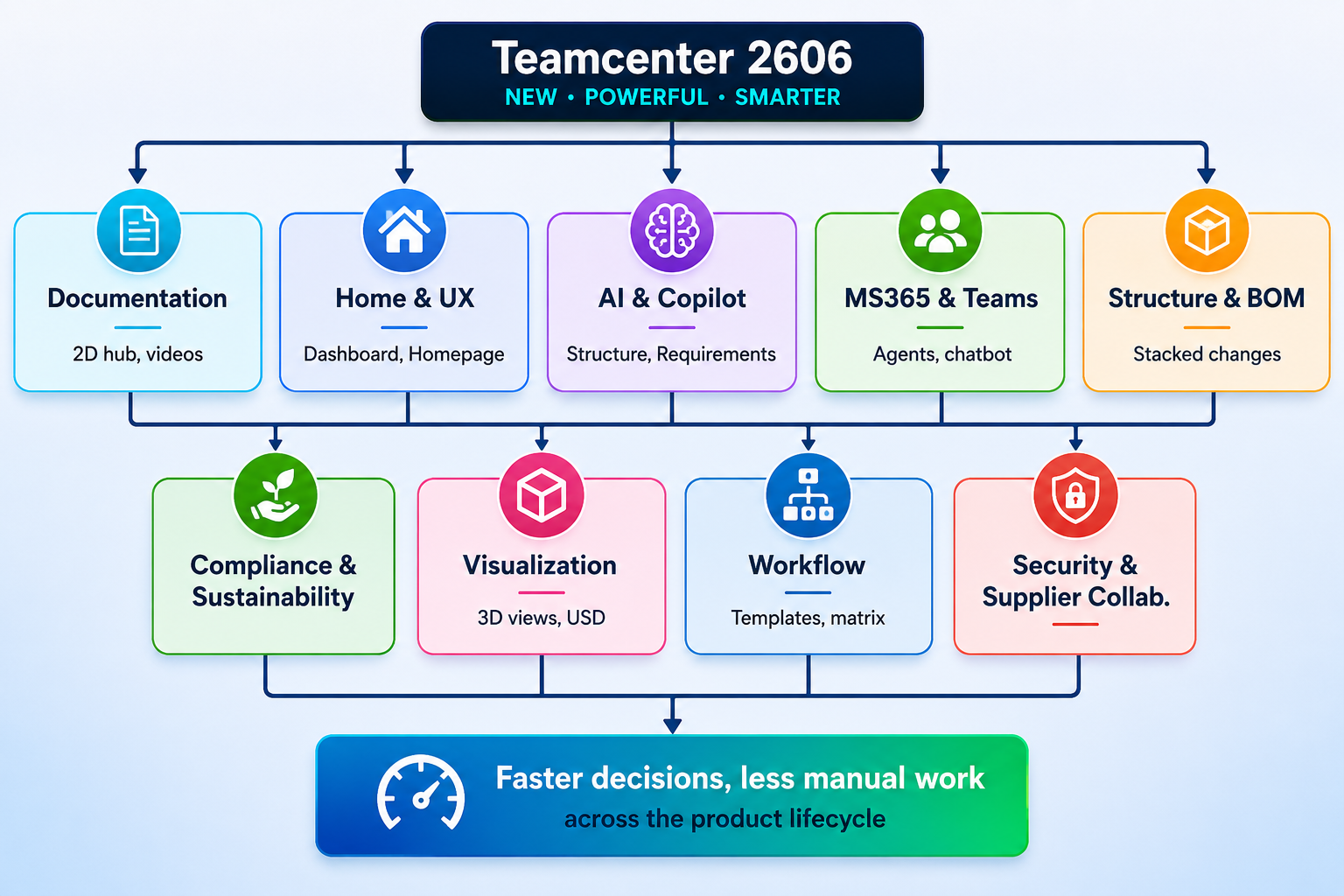
Instead of one long list, this release is easiest to understand as nine connected areas of change — each solving a different part of the day-to-day PLM workflow. The map below shows how they relate; jump to any section from there.
Teamcenter 2606:- NINE KEY AREAS
A single home for all documentation
Siemens replaced the old “Browse Teamcenter help by product area” and “Browse Active Workspace help by product area” pages with one central hub called 1st Stop: Teamcenter Documentation Home. Instead of guessing which of several entry points held the deliverable you needed, you now land in one place and either browse by category or use Ctrl+F to jump straight to it. Previously scattered deliverables — EDA Integration, Easy Plan, Electronic Work Instructions, Service Lifecycle Management, and others — are also now listed together under a single Teamcenter heading, so cross-referencing between product areas takes far less clicking.
The Release Bulletin moved out of Support Center
The Teamcenter Release Bulletin, which used to live only in the Teamcenter Downloads area of Support Center, is now published alongside the rest of the documentation on the 1st Stop home page. This is a small change with a real workflow benefit: anyone already reading the “what’s new” material no longer has to leave that context and log into a separate downloads portal to find the bulletin.
Video walkthroughs for complex procedures
Recent releases have steadily added conceptual and procedural videos to the documentation, and 2606 continues that trend with examples such as calculating BOM properties dynamically using variant configuration, understanding the pack/unpack/summarization of items, and creating a quality checklist template. One caveat worth knowing: these videos, along with newer hyperlinked/hotspot graphics in topics like Components of Teamcenter security, only work in the HTML version of the documentation — not PDF.
The Home page becomes a real personal dashboard
2512 introduced the dashboard concept for the Active Workspace Home page; 2606 is the release where that dashboard becomes genuinely personal. You can now add, delete, replace, resize, and move the Cards that make up your Home page, so the layout reflects the work you actually do rather than a fixed default. For a design engineer that might mean pinning open change requests and recent structures; for a quality lead it might mean surfacing pending qualifications instead.
New Siemens themes, with Framed Theme as default
A set of new, color-balanced Siemens themes has been added, designed specifically to reduce eye strain during long working sessions — a meaningful detail for anyone spending hours a day in Active Workspace. The Framed Theme is now the default for new installations, though administrators can set a different default for their organization.
Responsive layouts across screen sizes
Active Workspace pages now adapt far more gracefully to different window sizes and devices. As more work happens across split-screen monitors, laptops, and tablets rather than one fixed desktop layout, a UI that reflows properly avoids the clipped panels and awkward scrolling that used to come with resizing a window.
Guided assistance before you delete something
Deleting an object in a PLM system rarely means deleting just one thing — it can cascade into related data you didn’t intend to touch. The new delete assistance feature gives you guided help at the point of deletion, showing what’s connected and reducing the chance of removing data you meant to keep.
Table views that actually stick
Custom table views previously had a habit of resetting when you switched groups or roles, forcing you to rebuild the same column layout repeatedly. In 2606, personalized table views are retained across groups and roles, so the view you built once stays built.
Browsing related data without losing your place
An inline tree now lets you expand and explore related data directly within the page you’re already on, instead of navigating away and losing your original context — removing a lot of the back-and-forth clicking that comes with cross-referencing linked objects.
Copilot for Structures becomes an action-taker, not just a search tool
In earlier releases, Copilot for Structures was mainly about finding things. In 2606, it can create engineering changes and automatically associate the affected items, identify parts and replace them with AI-generated recommendations, build impact-analysis worksets, and visualize change markups across multiple structures at once. It also remembers instructions you give it under a keyword, so a complex, multi-step request you’ve phrased once can be reused rather than retyped, and it proactively suggests logical next actions based on your last prompt.
Requirements conformance checking you can actually audit
AI-powered conformance checking for requirements now presents its output as “Final Suggestions” that clearly separate your original wording from what the AI proposes, using green highlighting for additions and red for deletions. Each suggestion comes with an explained rationale rather than a bare recommendation, and the whole result can be exported as a downloadable PDF conformance report — useful for review cycles where you need to show your work, not just the end state.
Smarter guardrails when creating parameters
When AI suggests Units and Data Type values for a new parameter, it now validates those suggestions against what Teamcenter actually supports and flags anything invalid before you accept it — closing a small but annoying gap where a suggestion could look reasonable but fail validation later.
Configuring Copilot Quality without touching JSON
Chat-assistant prompts for Teamcenter Copilot Quality used to require hand-editing JSON configuration files — a barrier for administrators uncomfortable working directly in config syntax. Prompts are now configured through the user interface instead, making it realistic for more people on a quality team to tune Copilot’s behavior themselves.
One Copilot answer, pulled from two systems
The new Teamcenter agent for Microsoft 365 Copilot means a question typed into Microsoft 365 Copilot can return a single combined answer sourced from both SharePoint and Teamcenter documents, with links back to each original source so you can verify where each part of the answer came from. Nobody has to remember which system holds which document anymore.
Finding similar problem reports inside Teams
The Teams chatbot can now search for similar problem reports — for example, everything related to “motor” issues — and return a curated list. In practice this helps teams catch existing fixes before opening a duplicate report, a common source of wasted troubleshooting time in larger organizations.
Turning on Microsoft 365 agents from one place
Microsoft 365 agents such as Document Search, Procurement Agent, and Task Management Agent can now be activated directly from the Onboarding Portal, rather than being configured through separate, disconnected setup steps.
Teams and Copilot apps no longer tied to the Teamcenter release train
Previously, upgrading Teamcenter could force a reinstall of the Teamcenter app for Microsoft Teams or the MS365 Copilot app, even if nothing about those apps had actually changed. They now update on their own independent schedule, decoupling the Microsoft 365 integration from the core Teamcenter upgrade cycle.
Stacked changes: solving the lost-redline problem
This is one of the more technically significant changes in the release. Historically, Teamcenter required concurrent changes to reference identical impacted revisions before it would merge them cleanly — if two people worked on different revisions of the same base item at the same time, one set of edits could quietly overwrite the other. In 2606, Teamcenter evaluates concurrency at the base-item level instead, so changes on the same item auto-merge correctly regardless of which specific revision each change touches. For teams running parallel change processes on shared BOM data, this directly addresses the classic and costly problem of lost redlines.
The Product Configurator’s move to JSON
Variant expressions used to be stored in a deep, nested-grid structure that got measurably slower to query as configurations grew in complexity. The new JSON-based format replaces that structure, and the practical effect is faster authoring, updating, deleting, and loading of variant configuration objects — an improvement that compounds the more variant complexity a product line carries.
A real color library, not per-part guesswork
You can now create and manage a shared color library and apply color appearance definitions that are scoped to specific products or parts, rather than recreating appearance settings ad hoc each time. Color parts can also be generated at the assembly level, which is particularly useful for product lines with many visual variants — automotive trim packages or consumer product color options, for example.
Duplicating structures without losing security context
Structure duplication now lets you optionally copy Designcenter dependencies, and it automatically applies your active session’s project security settings to the newly duplicated structure — closing a gap where security context could otherwise be lost or need manual reapplication after copying.
Guided EBOM-to-design alignment
Keeping the Engineering BOM synchronized with underlying design data has traditionally required a fair amount of manual reconciliation. A new guided interface handles initial alignments, and guided updates keep the two in sync afterward with less hands-on intervention.
A naming fix in FMEA: Root Cause, not just Cause
“Failure Cause Actions” has been renamed to “Failure Root Cause Actions.” It’s a small terminology change, but it more accurately reflects what the field is meant to capture — the underlying root cause rather than a surface-level cause — which matters for consistency in quality documentation and audits.
Watching lifecycle assessments happen, not just waiting for them
Life Cycle Assessment (LCA) calculations can now be monitored in real time as they run, with alerts firing the moment a calculation succeeds or fails. A failure surfaces immediately instead of being discovered only after the calculation was expected to be done, shortening the time to catch and fix a data or configuration issue upstream.
LCA that starts itself
Lifecycle assessments can now be triggered automatically as part of existing release workflows, rather than requiring someone to manually kick off the calculation as a separate step — folding sustainability reporting more tightly into the normal product release process.
Bulk control over substance compliance grading
New grading modes let organizations tune how compliance checks are scored, and a dedicated configuration UI allows vendor parts and materials to be categorized or overridden in bulk rather than one at a time — a significant time saver for companies managing large vendor catalogs against evolving regulations.
More precise FMEA comparisons
You can now control exactly what’s compared between a master FMEA and its variants, view all FMEA elements in a single action instead of piecing them together, and choose which properties and relations should align after a comparison is run — finer control over comparisons that used to be more rigid and all-or-nothing.
FIPS support extends into Visualization
FIPS-compliant encryption support has been expanded specifically into base Visualization capabilities, extending the same government- and defense-grade encryption standard already being rolled out elsewhere in the platform into the visualization layer.
Finer control over level of detail (LOD)
LOD access level enhancements give more granular control over how level-of-detail data is accessed and rendered — relevant for large, complex assemblies where loading full-fidelity geometry for every part isn’t practical or necessary.
Small but useful 3D viewer refinements
A cluster of smaller changes lands in the 3D viewer this release: new controls for how points are displayed, control over body visibility and reference sets, the ability to view color themes directly in the 3D viewer, and part properties that appear on hover rather than requiring a separate lookup.
Automatic USD conversion for photorealistic digital twins
Models can now be automatically converted to USD (Universal Scene Description) format to support photorealistic digital twins, removing a manual conversion step for teams building high-fidelity visual representations of their products.
Workflow templates that suggest themselves
When the list of available templates in the Submit to Workflow panel reaches five or more entries, Teamcenter now offers template suggestions automatically. Recommendations are based on your user profile, role, group, the object type being submitted, and the recency and frequency of choices made by users with similar profiles — meaning suggestions should get more accurate over time as more comparable users use the system.
People Picker: context-based participant suggestions
A new People Picker capability suggests relevant users, groups, roles, or teams for a workflow task based on user actions and profile context, rather than requiring you to search and select participants manually every time. It’s controlled by the AWA_enable_people_picker_suggestions preference, which ships turned off by default.
Assignment matrices now support dynamic participants and key roles
Assignment matrices previously supported only group members or resource pools as assignees. They can now also include dynamic participants or key roles sourced from the workflow target, the assignment source, or elsewhere — a meaningful flexibility gain for organizations whose reviewer lists change based on the object being reviewed rather than a fixed group.
A safer default for the assignment matrix handler
The assignment matrix handler’s default behavior now protects manual work: the -assignment_option argument defaults to merge_if_exist instead of override_if_exist, so ad hoc signoffs are merged with — rather than silently replaced by — assignment matrix assignees. The Select Signoff Team task also no longer auto-completes as soon as reviewers are identified; it stays open for manual completion, matching other assignment handlers. Organizations that relied on the old auto-replace, auto-complete behavior can still configure it explicitly.
FIPS-compliant encryption across the platform
All HTTPS/SSL client and server communication can now run under FIPS-compliant encryption, which is often a hard requirement for U.S. government agencies and defense contractors. Combined with the FIPS expansion in Visualization, this release meaningfully broadens where FIPS compliance applies across the platform rather than leaving it isolated to specific modules.
Tighter single sign-on and a CSP-compliant expression framework
Single sign-on security has been enhanced, and a Content-Security-Policy-compliant framework now governs dynamic expressions. Together these reduce the platform’s exposure to common web security risks without requiring administrators to build custom mitigations on top.
Supplier Connect goes two-way
Supplier Connect previously supported one-way sharing — data went out to a supplier for reference, but the flow stopped there. It now supports round-trip sharing of requirements, quality objects, and product data, where suppliers can update the data and send it back for OEM approval. Suppliers can also initiate their own data exchanges rather than only responding to requests, making the collaboration genuinely bidirectional.
Exporting to Asset Administration Shell format
A full product hierarchy can now be exported directly to Asset Administration Shell (AAS) format, a standard used for representing digital twins of assets in Industry 4.0 environments — giving organizations a more direct path to interoperate with partners and systems that expect data in AAS form.
Reading tip:
Each area above stands on its own, so feel free to bookmark this page and jump straight to the section your role touches most — Structure & BOM and AI & Copilot tend to matter most for engineering teams, while Compliance and Security are the ones quality, EHS, and IT stakeholders usually ask about first.
=========================================================================
Published article
https://globalplm.com/category/teamcenter/
Understanding the Role of Artificial Intelligence in Teamcenter PLM
Top 50 Teamcenter Active Workspace Interview Questions and Answers (2025)
=========================================================================
What’s Next? We have more deep dives into PLM Tutorials, Teamcenter, and Active Workspace coming your way soon.
We value your feedback! Please share your thoughts in the comment section below.
If you have specific technical questions, feel free to post them in our Forum via the “Add Topics” button, and our team will provide a solution as soon as possible.
Stay Connected:
Follow us on our social media platforms for the latest updates, or
reach out with suggestions at [email protected].